
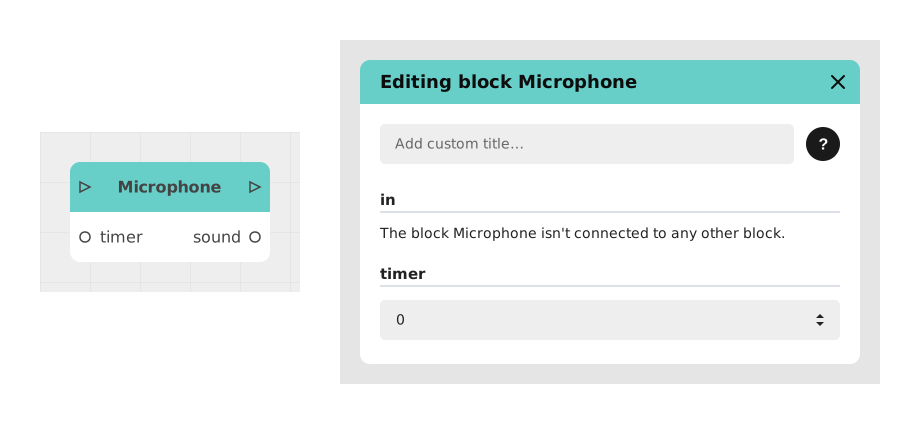
The Microphone block allows you to record the voice or sound coming from the user via the microphone of their device (computer or smartphone).
This block is particularly useful for adding voice interactivity to your module. It is available in the Chatbot and Visual Novel templates (premium templates). The user is asked to allow access to their microphone before the recording starts.
📥 Inputs
- in (Stream): Flow link that triggers the recording request.
- timer (Number): (Optional) Maximum time allowed, in seconds, counted from the moment the recording opens. When it runs out, the recording stops and the scenario continues through the timeout output. With 0, there is no limit and the timeout output does not exist.
- animation (List of values): (Optional) What the user sees while they speak: Spectrum (default, lines that follow their voice), Bar (a bar that follows the level of their voice) or None (a simple "Recording…" pill, with a countdown if a duration is set).
- duration (Number): (Optional) Capture duration, in seconds. When it runs out, the recording stops by itself and the scenario continues through the out output, as if the user had finished it themselves. With 0 (the default), there is no automatic stop: the recording lasts until the user finishes it.
In the editor, these last two inputs are labeled animation and capture duration (s).
📤 Outputs
- out (Stream): Flow link to continue the scenario once the recording is complete: the user finished it themselves, the capture duration ran out, or they chose to continue without recording after an error.
- sound (Audio file): Sound file generated by the user's recording. Can be used for database storage or later listening.
- timeout (Stream): Flow link that appears as soon as you give the timer a value greater than 0. It is followed if the timer runs out before the recording is finished. The sound recorded up to that point remains available on the sound output.
🎚️ Choosing the animation
- Spectrum: the original animation, lines that wave with the voice. This is the default.
- Bar: a sober bar that follows the level of the voice.
- None: no sound visualization, only a pill with a colored dot and the text "Recording…". If a capture duration is set, the number of seconds left is shown in it.
The animation does not change the recorded sound: only the look changes. If the user has asked their device to reduce motion ("reduce motion" setting), Spectrum is replaced by Bar, which no longer follows the voice continuously but moves one step per second. A screen reader announces "Recording in progress" (with the automatic stop delay if there is one).
💡 Example of use
Scenario: Recording a voice message of 20 seconds at most for an assistant
- The user arrives at an interface requesting a voice message.
- A Button block is placed to trigger the recording.
- The Microphone block is configured with the Bar animation and a capture duration of 20 seconds.
- The user clicks the button and allows access to the microphone.
- They speak, then finish the recording with the end button (the cross at the top right in the Chatbot, the "Stop" button in Visual Novel). If they do nothing, the recording stops by itself after 20 seconds.
- Either way, the sound output is sent to an API block for storage, while the out output displays a thank-you message.
Variant: if you also set a timer of 30 seconds, the block has a timeout output, for example to display a warning message if the allowed time is exceeded.
🛟 When the microphone does not start
If the recording cannot start, the user sees an explanation instead of a silent failure. In the Chatbot, each message says what happened and what they can do:
- Access refused: the browser did not allow the page to use the microphone. They are invited to click the padlock or microphone icon next to the address, allow the microphone, then try again.
- No microphone found: no microphone is plugged in or recognized. They can plug in a microphone or a headset and try again.
- Microphone already in use: another application or tab (video call, recorder) is using it. They can close it and try again.
- Recording not available: the browser does not allow it, or the page is open at an insecure address (one that does not start with https). They can use an up-to-date browser on an https address.
- Unexpected error: they can try again and, if the problem continues, copy the details for support.
In every case, they can also choose Continue without recording: the scenario then continues through the out output, with an empty sound. After the Microphone block, plan for the case where the sound output is empty (for example a keyboard input instead). In Visual Novel, the same Try again / Continue without recording choice is offered with a shorter message.
⚙️ Technical Details
- Internal identifier:
microphone - Permissions required: This block requires access to the microphone via the browser. The user must accept the permission request for the block to work.
- Compatibility: Works on modern browsers (Chrome, Firefox, Edge, Safari) and mobile devices.
- timer and capture duration: the timer leads to the timeout output, the capture duration leads to the out output. The timer counts from the moment the recording opens (including the wait for permission), the capture duration from the moment the microphone is actually recording. Both can be used together; whichever is shorter applies first.
- Visual Novel: the header shows the elapsed time (for example "0:03 / 0:08" with a duration of 8 seconds) and the timer appears as a thin line that shrinks.
- Blocks already present in a module created before version 6.1: they do not show the animation and capture duration inputs, and keep the Spectrum with no automatic stop. To use the new inputs, place a new Microphone block.
🔗 See also
- Select file for an alternative that sends an existing file.
Available from Creator version 6.1 (animation, capture duration, automatic stop, explained errors, Visual Novel).
Documented version: v2