
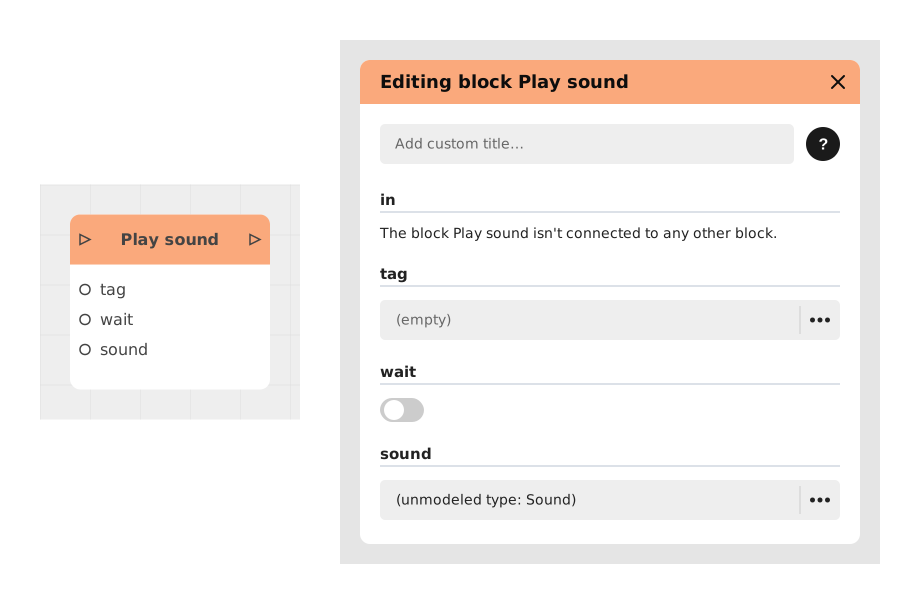
The Play sound block triggers a one-off sound effect, noise, or voiceover in your application.
Two options let you go further: making the rest of the flow wait until the sound finishes, and tagging the sound so it can be stopped later with the Stop sound block.
📥 Entries
- sound: Audio file to play (sound effect, sound effects or voiceover).
- tag (Text): Custom label to identify this sound and target it with the Stop sound block.
- wait (Boolean): If enabled (True), the stream waits for reading to finish before continuing. Disabled (False) by default.
📤 Outings
- out (Stream): Allows you to plug in the rest of the flow. If wait is enabled, this output will not activate until the sound has finished playing.
💡 Example of use
Scenario: Sound validation of a user action
- The user clicks a "Submit" button on a form.
- The stream arrives at the Play sound block to confirm sending.
- The block is configured with:
- sound: A "validation.mp3" file (confirmation sound).
- wait: Enabled (True) to prevent the success message from being displayed too early.
- tag: "confirmation_send" (in case the user cancels the action).
- The validation sound plays, and the flow waits for it to complete before moving to the next step.
- A message “Your request has been sent!” appears on the screen.
⚙️ Technical Details
- Stream behavior: If wait is disabled, the block starts reading in the background and immediately goes to out.
- Tag management: The same tag can be reused to stop a sound in progress via the Stop sound block, even if it was launched by a different instance of Play sound.
- Supported formats: Audio files must be in MP3, WAV or OGG format for optimal compatibility.
Documented version: v1